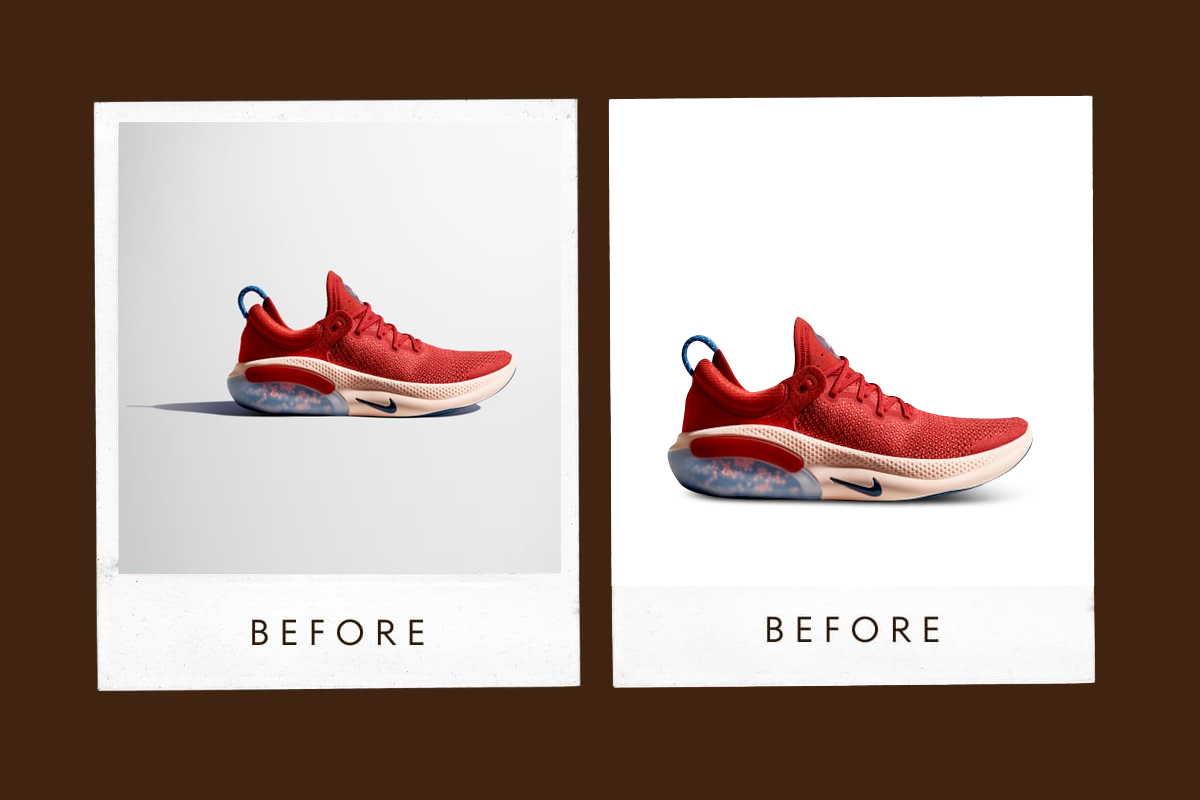

Learning the simple way to Make Background White in Photoshop is one of the most searched and misunderstood photo-editing skills. On the surface, it sounds simple. In practice, it separates amateur edits from professional, production-ready images—especially for e-commerce, product catalogs, marketing assets, and brand visuals.
This page is written as long-form, experience-based content with a blog-style flow. It reflects real production workflows used daily by professional editors, including the standards followed at Lumere Touch, where making a background white in Photoshop is treated as a precision process, not a one-click shortcut.
Everything below focuses on accuracy, edge quality, color integrity, scalability, and platform compliance.
What the Simple Way to Make Background White in Photoshop Really Means
When people search for a simple way to Make Background White in Photoshop, they are rarely asking how to paint something white. They are asking how to:
Isolate a subject cleanly
Preserve natural edges
Avoid halos and cutout artifacts
Maintain original color and texture
Produce a truly white background (#FFFFFF)
Professional editors know this task is less about white backgrounds and more about subject separation.
At Lumere Touch, the goal is never white enough. The goal is technically correct, which survives zoom, compression, and commercial use.
Why White Backgrounds Matter So Much
White backgrounds are required or preferred because they:
Remove visual distractions
Improve focus on the subject
Increase perceived professionalism
Comply with marketplace rules (Amazon, Shopify, catalogs)
Improve conversion rates
Knowing how to make the background white in Photoshop correctly protects brand credibility.
Common Mistakes When Making Background White in Photoshop
Before learning best practices, it’s important to understand what goes wrong:
Jagged edges
Gray or off-white backgrounds
Color bleeding
Haloing around hair or products
Destroyed fine details
These mistakes usually come from relying on shortcuts instead of controlled workflows.
Understanding “True White” in Photoshop
True white is not visual white. It is numerical white.
RGB: 255 / 255 / 255
Hex: #FFFFFF
Anything less becomes gray after compression.
At Lumere Touch, background white in Photoshop is verified using pixel sampling, not guesswork.
Preparation Before You Start Editing
Professional background white work starts with preparation.
Check the Original Image
Sharp focus
Decent lighting
Clear subject separation
Photoshop cannot fix bad capture—it can only refine.
Method 1: Using Pen Tool (Professional Standard)
If you want to master the way to make the background white in Photoshop, the Pen Tool is non-negotiable.
Why Professionals Use the Pen Tool
Maximum edge control
Clean, scalable paths
Perfect for products, hard edges
Workflow
Create a path around the subject
Convert path to selection
Apply a layer mask
Add a white background layer
This is the gold standard at Lumere Touch for product photography.
Method 2: Select and Mask (Advanced Refinement)
For complex edges like hair or fur, Select and Mask is essential.
Best Practices
Start with Quick Selection or Object Selection
Enter Select and Mask
Use the Refine Edge Brush carefully
Output to Layer Mask
Never trust automatic settings blindly.
Method 3: Object Selection Tool (Modern Photoshop)
Object Selection is useful—but not final.
When to Use It
High-contrast subjects
Clean backgrounds
When Not to Trust It
Hair
Transparent objects
Reflections
At lumere touch, Object Selection is a starting point, not an end.
Method 4: Channels (High-Skill Technique)
Channels are powerful for difficult separations.
When Channels Work Best
Strong contrast between the subject and the background
Hair, smoke, fine details
Channels require patience but deliver exceptional results.
Making the Background Pure White Without Damaging the Subject
After masking, you still need to ensure the background is truly white.
Correct Way
Place a solid white layer underneath
Check with the color sampler
Adjust mask edges, not subject colors
Wrong Way
Painting white over the background
Using brightness/levels aggressively
Fixing Gray or Uneven Backgrounds
If your background looks white but isn’t pure white:
Add a Threshold adjustment to check
Use Levels on the background only
Never apply Levels globally
This step is standard at Lumere touch quality control.
Edge Cleanup: The Difference Between Amateur and Professional
Edges define quality.
Common Edge Issues
Fringing
Color spill
Soft halos
Solutions
Mask feathering under 0.5px
Defringe selectively
Manual brush refinement
Zoom to 200–300%. Professionals always do.
Handling Hair on White Backgrounds
Hair is the hardest part of making the background white in Photoshop.
Best Practices
Never erase hair
Use Select and Mask refinement
Preserve transparency
At Lumere Touch, hair edges are refined manually when needed.
Transparent and Reflective Objects
Glass, jewelry, and plastic require advanced care.
Key Rules
Do not flatten transparency
Preserve reflections
Avoid solid white fill inside transparent areas
A white background does not mean a white object.
Shadow Preservation on White Background
Shadows anchor realism.
Correct Approach
Keep natural contact shadows
Reduce opacity slightly
Avoid floating objects
Many marketplaces allow soft shadows—check guidelines.
Background White in Photoshop for E-Commerce Platforms
Different platforms have different rules.
Typical Requirements
RGB mode
sRGB color profile
Pure white background
No borders or gradients
Editing for compliance is as important as visual quality.
Batch Processing White Backgrounds (Safely)
Batch processing saves time—but risks quality.
Safe Batch Workflow
Manual masking first
Batch color corrections only
Individual quality checks
Automation never replaces judgment.
Non-Destructive Workflow (Mandatory)
Professional editors never destroy pixels.
Use
Adjustment layers
Smart Objects
This allows revisions and consistency.
Color Integrity After Background Removal
White backgrounds exaggerate color errors.
Best Practices
Recheck saturation
Correct color cast
Compare against the original
At Lumere Touch, color integrity is always verified last.
Checking Your Work Like a Professional
Before export:
Zoom to 300%
Toggle background on/off
Sample white areas
View on light and dark UI
This catches hidden mistakes.
Export Settings for White Background Images
Export mistakes can ruin perfect edits.
Recommended
JPEG or PNG (platform-dependent)
sRGB color space
Controlled compression
Avoid over-compression—it introduces gray artifacts.
Common Photoshop Tools You Should Avoid
Magic Eraser
Background Eraser (for final work)
Hard erase brushes
These tools destroy edges permanently.
Why One-Click Tools Fail Long-Term
AI tools are improving—but still fail at:
Hair
Transparency
Accuracy
Professional editors still rely on manual control.
How Professionals at Lumere Touch Approach White Backgrounds
At lumere touch, every white background follows:
Manual subject isolation
Pixel-verified white
Edge inspection
Platform compliance
This consistency is why images remain usable long-term.
Pros & Cons of Making Background White in Photoshop
| Pros | Cons |
|---|---|
| Clean, professional look | Time-consuming |
| Marketplace compliance | Requires skill |
| Higher conversion rates | Manual effort |
| Visual consistency | Learning curve |
| Scalable for catalogs | Quality control needed |
When Not to Use a White Background
White backgrounds are not always ideal.
Avoid when:
Lifestyle context matters
Mood is critical
Brand style requires texture
Knowing when not to use white is also professional judgment.
White Backgrounds and Brand Trust
Consistent white backgrounds:
Reduce buyer confusion
Increase clarity
Improve credibility
Poor white backgrounds damage trust instantly.
Advanced Troubleshooting
Background Looks White, but Fails Marketplace
Check RGB values
Remove compression artifacts
Edges Look Clean Until Upload
Platform compression issue
Export at a higher quality
Scaling White Background Editing for Large Catalogs
Scalability requires:
Defined standards
Repeatable workflows
Quality checks
This is how Lumere Touch handles high-volume projects.
Why Learning This Skill Matters Long-Term
Knowing how to make the background white in Photoshop is not just a technique—it’s a commercial skill.
It supports:
E-commerce growth
Brand professionalism
Visual consistency
Frequently Asked Questions (FAQ)
1. What is the Simple Way to Make Background White in Photoshop?
Using manual selection with layer masks and verifying true white values.
2. Is the Magic Wand good for white backgrounds?
No. It creates poor edges and color spill.
3. How do I make sure the background is pure white?
Check RGB values with the color sampler tool.
4. Can I use AI tools for white backgrounds?
Only as a starting point, never final.
5. Why does my background look gray after export?
Compression or incorrect RGB values.
6. Should I erase the background?
No. Always use masks.
7. How do I handle hair on white backgrounds?
Use Select and Mask with manual refinement.
8. Are shadows allowed on white backgrounds?
Soft natural shadows are often acceptable.
9. Why do professionals prefer the Pen Tool?
Because it gives maximum control and clean edges.
10. Why follow Lumere touch standards?
Because they prioritize accuracy, consistency, and long-term usability.